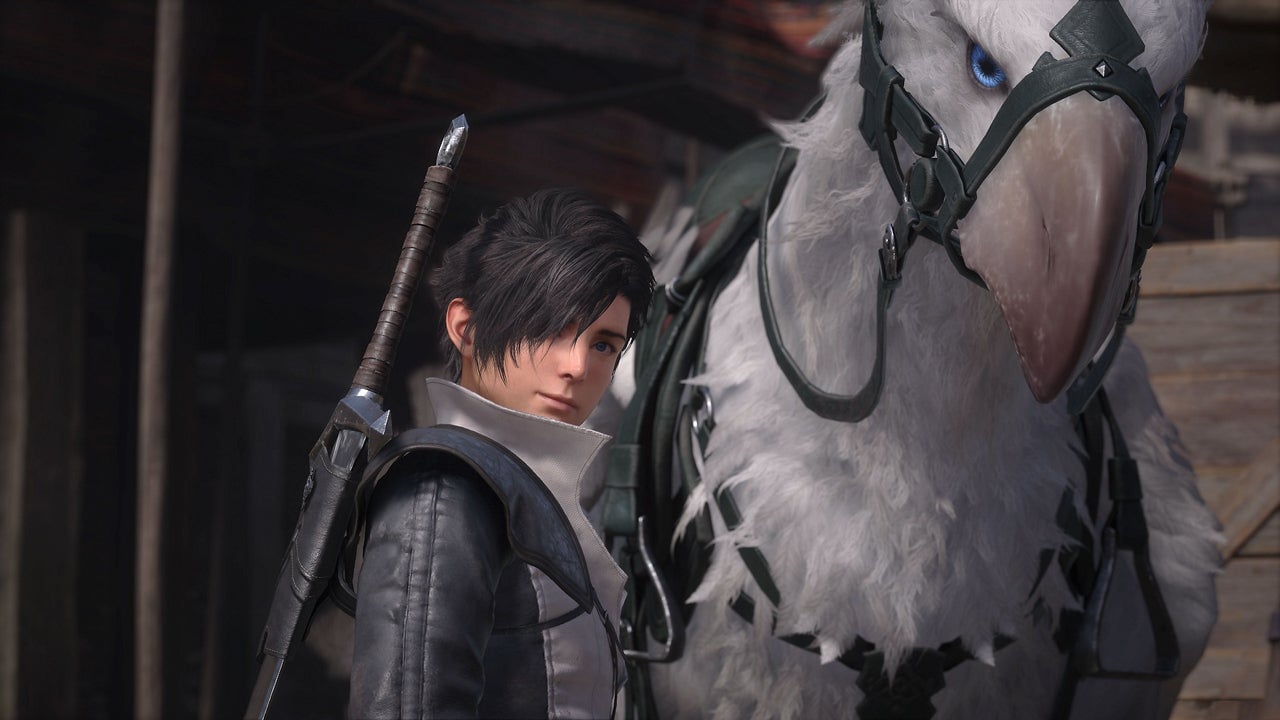
The latest in the legendary series of Japanese role-playing games, Final Fantasy XVI features a very different tone in both story and combat. And with a vast story covering complex fictional political plotlines, it can all be a little overwhelming. The good news, however, is that Final Fantasy XVI features a number of settings that can help you tailor the experience to your liking, and even make it a little easier to play.
Whether you’re looking to tweak the game’s combat to your favor or make the story a little easier to keep track of, here are eight settings you should consider adjusting.
Turn on speaker names for subtitles
Final Fantasy XVI has a lot of characters and plot details—so much so that there’s a dedicated feature that lets you pause any cutscene with the PS5’s touchpad to look up characters and historical facts. But sometimes this “Active Time Lore” is a little distracting, and it doesn’t help during gameplay.
So if you’re having a hard time telling Wade and Tyler apart, might I suggest turning on Speaker Names in the subtitle settings. You’ll find this under System > Language Settings > Speaker Names. Subtitles will need to be on for this to have any effect, of course.
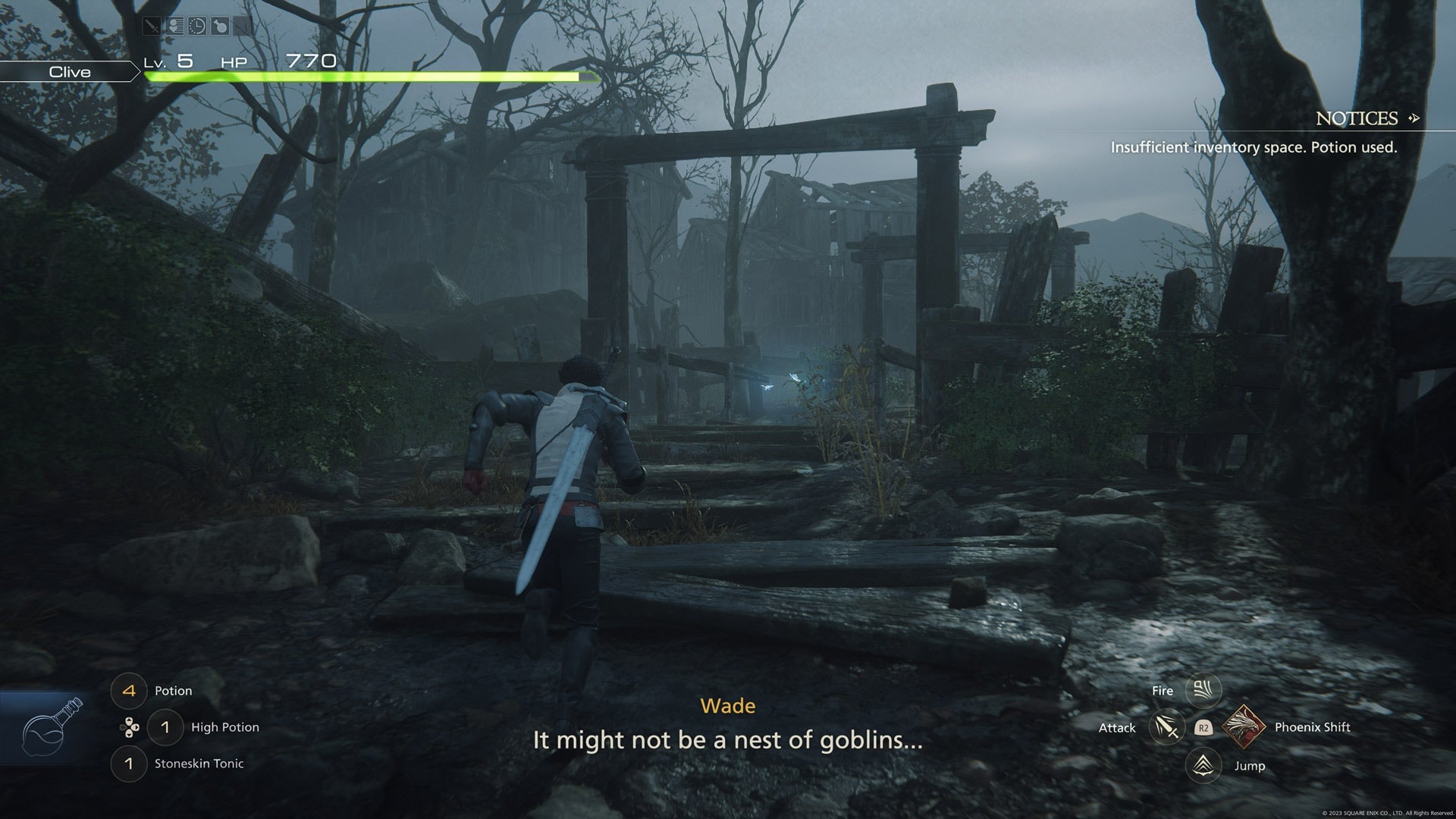
Now, not only will you see who’s speaking during a cutscene, but in-game banter is also accompanied by character names. Much better.
Graphics Mode or Framerate Mode?
Final Fantasy XVI is a very pretty game, but those visuals come at a cost to overall performance. As in many modern console games, it gives you a choice in the settings between prioritizing how pretty the game looks (Graphics Mode) or how fast and smooth the animations look (Framerate Mode). But which is best?
Well, Digital Foundry has an entire breakdown of FFXVI’s visual presentation if you’re in the mood for a 35-minute deep dive. But I’ll give you the CliffsNotes.
For almost all use-cases, you should use Graphics Mode. Not only does the Framerate Mode actually struggle to maintain a stable 60 frames per second outside of combat, but even when it’s hitting that, it’s doing so sometimes at the cost of dropping to a lowly 720p resolution. 720p was common in the Xbox 360 era—and on the Switch—but I know you didn’t buy that 50-inch 4K TV to have your PS5 output a 720p image of all things.
Consider the kind of game this is: Final Fantasy XVI is an epic narrative game that’s here to wow you with vistas and pretty graphics. Framerate Mode introduces notable texture pop-in, reduces shadow quality, and overall presents a blurrier image that just isn’t pleasing.
Yes, Framerate Mode does look smoother in combat, but that’s really the only benefit. I’d go for greater visual fidelity with Graphics Mode.
Make Final Fantasy XVI easier with its assist modes
Many modern games feature ways to tweak the difficulty, sometimes at very granular levels. Final Fantasy XVI is no exception here. Except you’re not going to find all of these settings in the game’s actual “System” menu. Instead, some of the combat settings are adjusted by way of actual equippable items.
Head on over to the Gear & Eikons tab in the pause menu. Just under your weapons and armor, you’ll see three accessory slots under an icon that looks like a necklace. This is where you equip Clive with accessories. Several accessories, which are start the game with, help adjust the difficulty of the game.
Final Fantasy XVI’s Timely Rings
Final Fantasy XVI gives you five different rings (you can equip a maximum of three at once) to make the combat easier for you.
The Ring of Timely Healing will auto-heal you by automatically activating a potion when your HP gets too low. And don’t worry, it selects standard potions instead of high potions at first.
The Ring of Timely Evasion will cause you to automatically dodge incoming attacks. Normally you need to hit R1 (default controls) to move Clive out of the way. But if you just want the game to handle that, this ring will do the trick.
The Ring of Timely Focus slows down time when you’re about to get hit. With this ring equipped, time will slow down when an attack is incoming and you’ll see a circular prompt asking you to hit R1 to get out of the way. Note that this ring and the Ring of Timely Evasion can’t be used together (the game will prioritize the Focus ring if you try both on).
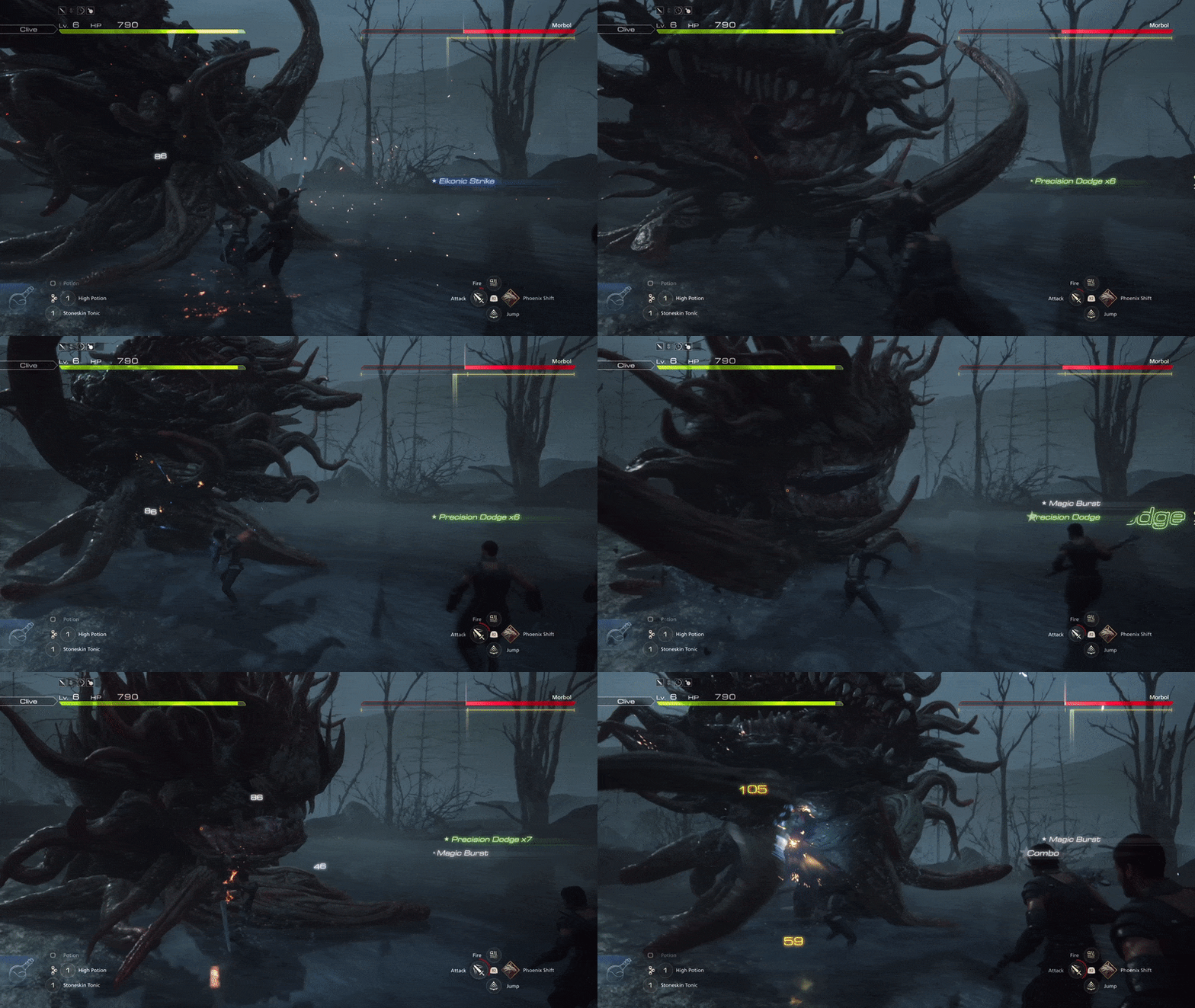
The Ring of Timely Strikes will automatically trigger combat combos from one button. Final Fantasy XVI’s combat relies on executing combos of melee strikes and magic spells, which requires different button inputs at different times. But if you want to simplify that, tossing on the Ring of Timely Strikes will let you just mash Square to have Clive automatically bust out different combos.
The Ring of Timely Assistance. Clive gets a hound in Final Fantasy XVI named Torgal. And he’s a very good boy, but if you want to let him handle himself in combat instead of having to command him, the Ring of Timely Assistance will put Torgal on auto-pilot, letting him assist you in combat without your input.
Change Final Fantasy XVI’s overall difficulty
If you’re here for the story and don’t want to struggle with combat at all, flip on Story-Focused Mode by heading to System > Game Settings > Gameplay. Now combat will be easier. Note that you can later adjust this setting at any time except during combat.
Combine Story-Focused Mode’s easier gameplay with the Timely Rings to make the game even easier to play.
Tweak the combat targeting and camera
Combat’s rather quick in Final Fantasy XVI. But if you want to tweak how the combat feels, you should consider two settings: Target Lock and Target Follow.
You’ll find Target Lock under System > Game Settings, at the bottom of the menu.
Target Lock lets you choose between tapping the target button to lock on to an enemy until you select a new one (similar to, say, Dark Souls) or having the lock-on end once you let go of the target button. Try out both options to get a feel for which is more suitable for you.
The other option, Target Follow, is found under System > Camera Settings.
With Target Follow turned on, your camera will automatically pivot to focus on the next targeted enemy. But here’s the thing, if you don’t feel a difference with this on or off, you’re not losing your mind. The speed of combat and the fact that once you start attacking a creature the camera will auto-focus anyway means that this is kind of a subtle setting. I recommend turning Target Follow on just to keep things feeling quick and focused in the heat of battle.
Revisit the tutorials
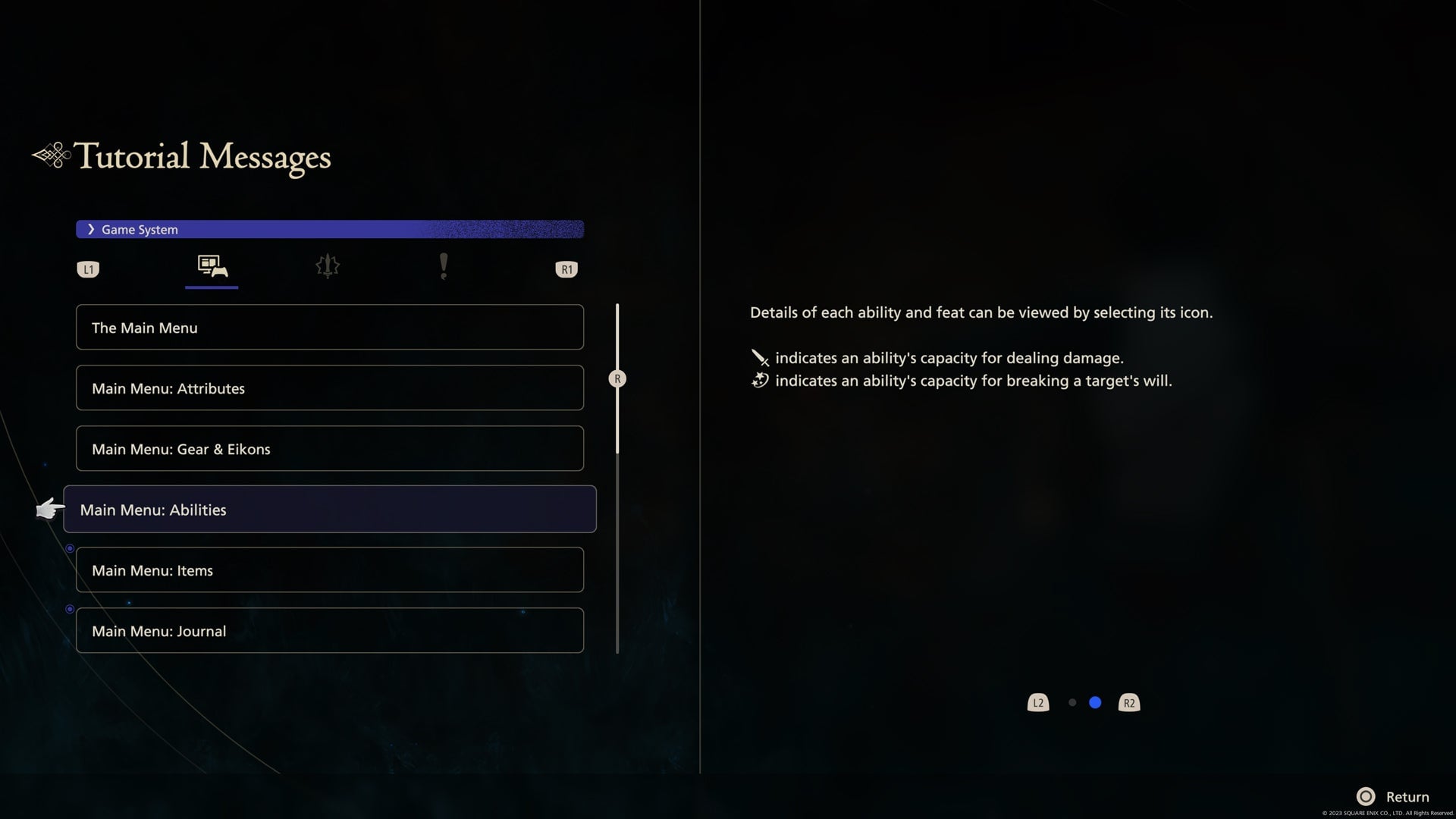
Worried you missed out on a key explanation of a game feature? Worry no more: In System > System Settings you’ll find Tutorial Messages. These will let you revisit any of the game’s tutorials in case you need a refresher.
Check out the audio settings
In addition to Hearing Impaired Subtitles, found under System > Language Settings > Hearing Impaired Subtitles, Final Fantasy XVI has another method of displaying audio in visual form: Visual Alerts. You can find them in that same menu.
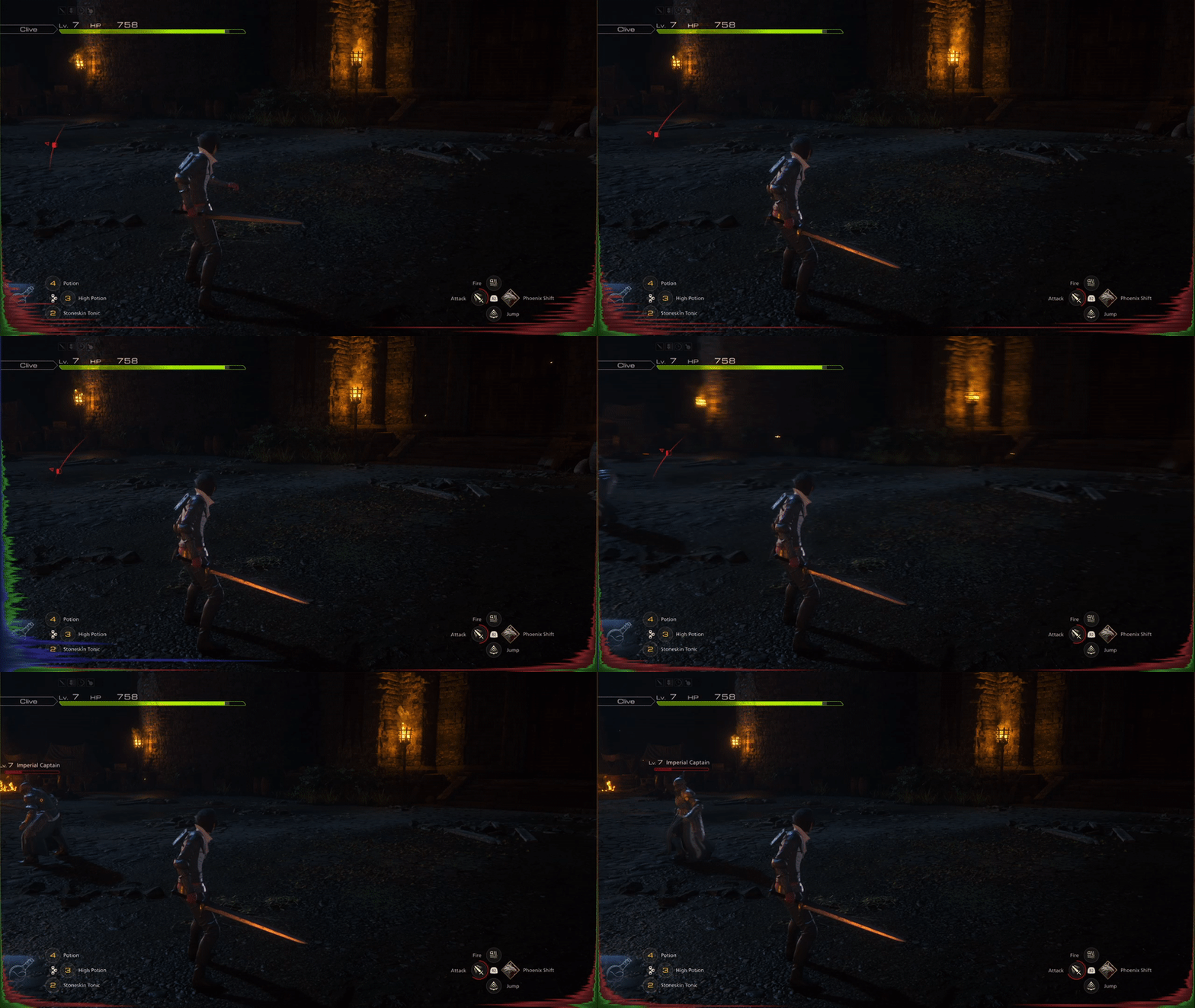
With this selected, waveforms of different colors (red for music, green for sound effects, blue for voices) will appear on the screen with respect to which side of the stereo field they are coming from.
Final Fantasy XVI offers several control schemes
If the default control scheme in Final Fantasy XVI isn’t to your liking, consider choosing one of the other two preset configuration in System > Controller Layout > Wireless Controller Layout.
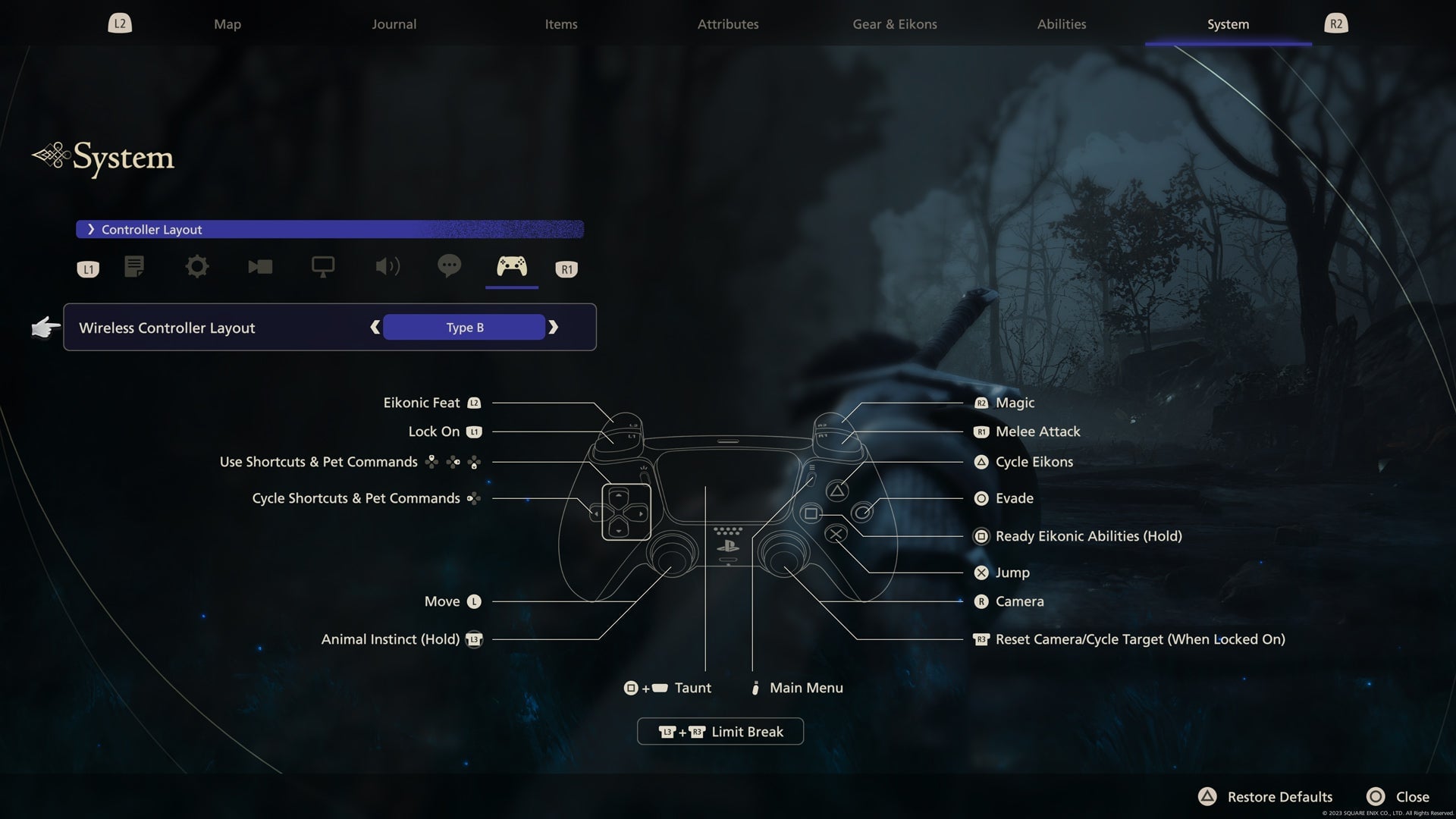
If you like keeping your thumbs on the thumbsticks as much as possible, I recommend taking a look at the Type B layout. This binds melee and magic to R1 and R2, respectively. You will still need to use the face buttons for evasion, jumping, and certain other abilities, however.
That said, some are finding Type C to be the real key to mastery over the game’s combo system.
With these settings, you can easily make Final Fantasy XVI an even more enjoyable game. Which ones are you likely to adjust first?