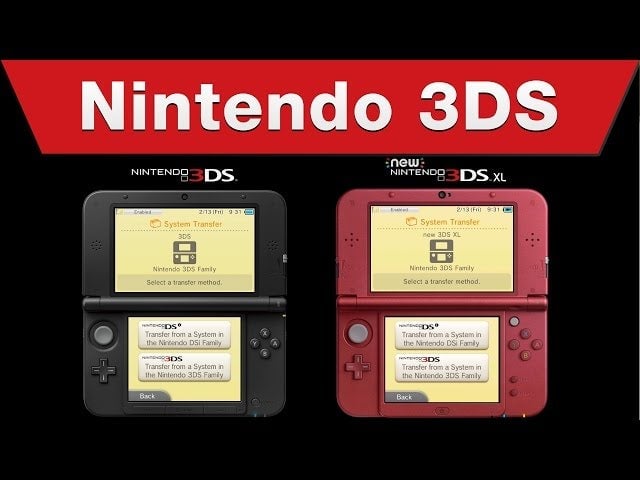
Just got a New 3DS? Want to transfer all your digital games and save-files from your Old 3DS to your new one? Well, you’re in for an adventure.
Since the two 3DS systems use different methods for storing data, the process for transferring those files is rather convoluted, in true Nintendo style. In fact, Nintendo’s walkthrough (which you can watch above) consists of a whopping 16 steps, which is kind of amazing.
For those of you (like me) who prefer to read things rather than watch them, I’ve written out the full instructions right here:
Things you’ll need: old 3DS; New 3DS; size-0 Phillips screwdriver; computer that can read SD and microSD cards (unless you want to transfer wirelessly, which can take a while); a bigger microSD card if you want to be able to store more than 4GB on your new system (recommended!)
Instructions:
1) Set up your New 3DS XL, but don’t create a Nintendo Network ID.
2) Select “System Settings” on both your 3DS and New 3DS, then select “System Transfer.”
3) On both systems, select “Transfer from a System in the Nintendo 3DS family.”
4) On your old 3DS, select “Send From This System.” On your New 3DS, select “Receive From Nintendo 3DS.”
5) Follow the prompts on both systems to start the transfer.
6) Select “delete” on your New 3DS to erase what’s on the microSD card.
7) Select “no” on your New 3DS when it asks “Have any other microSD cards been used with this system?”
8) Select “yes” on your old 3DS when it asks “Are you using an SD card or a miniSD card with this system?”
9) Select “PC-Based transfer” on your old 3DS. (Unless you want to do it wirelessly—then select that option instead.)
10) Select “Move” on your old 3DS.
11) On the old 3DS, you should see “Transfer complete.” On the New 3DS, you should see “The system will now restart to complete the transfer.” Hit OK on both.
12) Turn both systems off. Take the SD card out of the old 3DS. Take the microSD card out of the New 3DS by using your trusty screwdriver to take off the back panel. Leave the back panel off.
13) Put the SD card in your computer and copy the “Nintendo 3DS” folder to your desktop.
14) Put the microSD card in your computer and copy that same folder to the new card. (You can either use the 4GB card that comes with the New 3DS or buy a larger one. If you bought a larger one, use that for this step.)
15) Once you’re finished, put the freshly-filled microSD card back into your New 3DS and then screw the back panel on.
16) You’re done! Turn the New 3DS on and now everything should (finally) be working.
You can reach the author of this article at [email protected] or on Twitter at @jasonschreier