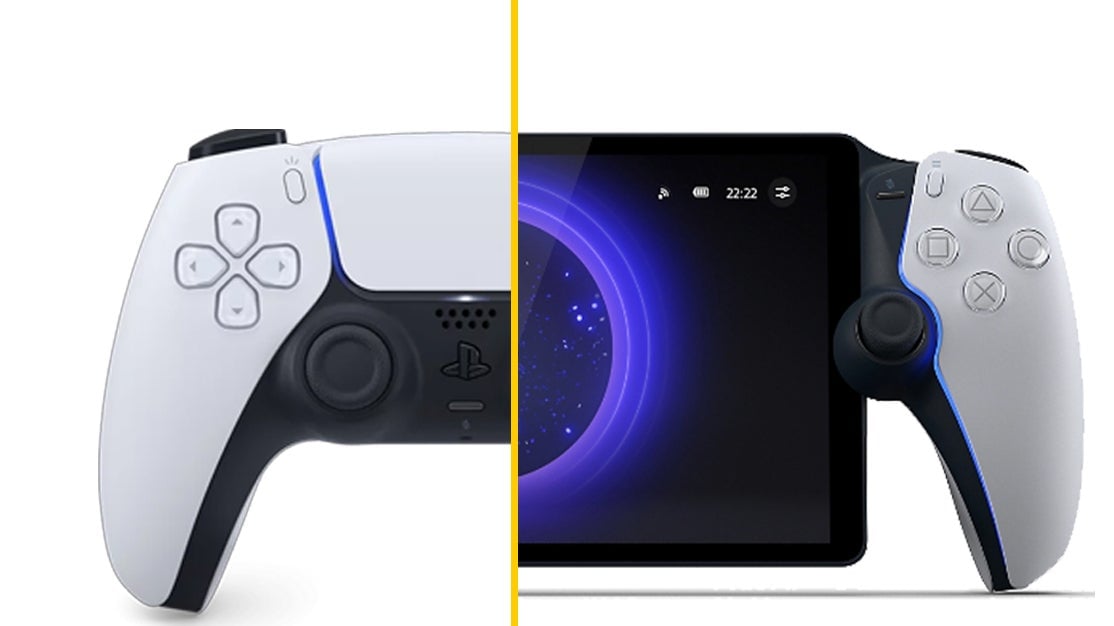
The PlayStation Portal is quite a striking device, with its massive screen nestled between two halves of a DualSense controller. It’s comfortable and familiar enough to use for anyone who has spent time with Sony’s popular PlayStation 5 console, and it’s extremely rare to run into any major controller compatibility issues while using the device.
However, despite feeling more or less identical to a DualSense (with some extra heft and slightly smaller sticks), you may notice there’s a rather significant piece of the PlayStation 5 controller that has been sacrificed in favor of the PlayStation Portal’s 8-inch screen: Yeah, it’s missing a touchpad.
With no touchpad, you may initially worry that you won’t be able to open menus or maps in certain games. But fret not—you can simulate a touchpad right on the screen. Here’s how.
How to use touchpad controls on the PlayStation Portal
To use the touchpad on your PlayStation Portal, simply tap the screen during gameplay to bring up two on-screen pads. These two on-screen pads represent the left and right sides of the DualSense’s touchpad.
While these prompts are active on your screen, you can perform touchpad-specific tasks with them, including moving your finger around the pad for games that require you to control a character using this type of control.
Most notably, double tapping either of the two on-screen pads represents a “click” of the touchpad, which lets you do things like open menus or access maps. And yeah, it’s definitely a little clunky to have to press the screen three times in a row to perform a single in-game tap, but it’s a small price to pay for getting to play your PlayStation 5 games basically anywhere you have wi-fi.
Luckily, the rest of the PlayStation Portal’s controller buttons all function identically to the standard DualSense, so you shouldn’t run into any further problems now that you’ve mastered the art of bringing up the touchpad. You’re a real pro at this, you know.