Sony’s PlayStation Portal began its life with a lot of limitations and skepticism. But after a much-appreciated update added the ability to stream PS5 games directly from the cloud, Sony’s PS5 companion has finally secured itself as a worthwhile accessory Sony’s current gen console. It still isn’t a perfect device, but it’s one with potential that continues to grow, and that means you’re likely to be spending more and more time with yours. As such, you may be draining your battery a bit faster, eh?
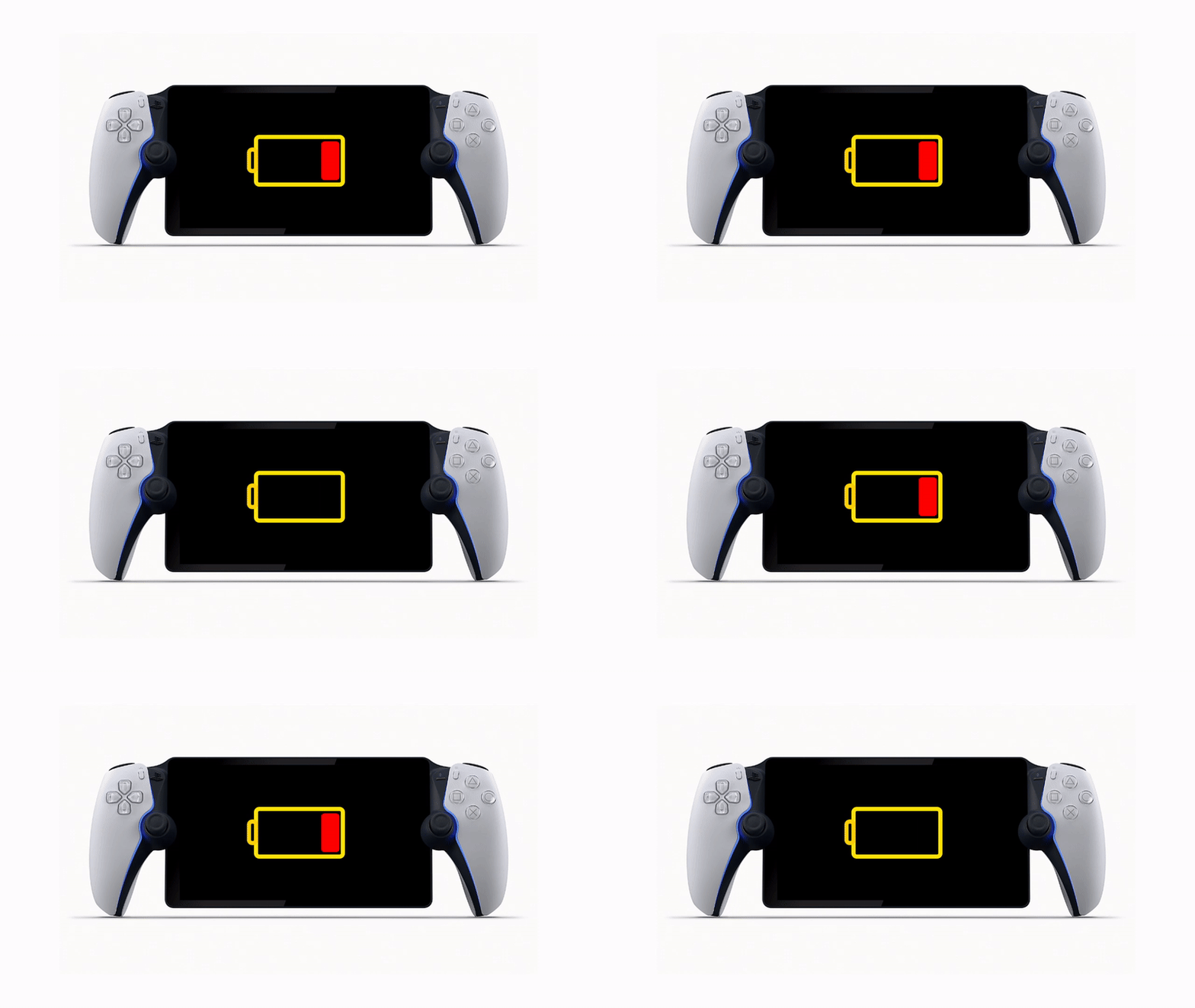
It’s true—the PlayStation Portal’s battery life is actually pretty decent out of the box, promising between 7-9 hours on average. But if you’re on an extended trip somewhere with no ability to charge it, you may want to try extending that life even further. Here are some tips for extending the battery life on your PlayStation Portal.
Reduce screen brightness
This one is a no-brainer. The brighter you keep your screen, the faster your battery will drain. If you’re in a dark room, you should be able to keep the brightness close to its lowest setting, but you may need to increase it again to see the screen in well-lit locations.
The brightness setting can be accessed on your quick settings tabs, or you can go into Settings > Display and Brightness. You’ll want to do that anyway for the next trick.
Turn off the light bar
The light bar around the rim of the PlayStation Portal controller looks cool, but it can drain your battery a bit. Since the light doesn’t serve any purpose beyond proof that your device is on, it may be worth disabling altogether.
Go to Settings > Display and Brightness to turn this feature off. While you’re there, you can also disable the mute button light, though I doubt that tiny light affects the battery much, if at all.
Turn off the haptics and trigger effects
It goes without saying that the PlayStation Portal’s haptic feedback and trigger effects are awesome, but they can also contribute to battery drain in games that frequently use it (this is also true of the PS5’s DualSense controllers).
If you head to Settings > Controller, you adjust the intensity of these features. I’d recommend turning them all the way off if your goal is to save as much battery as possible, but even just reducing their intensity will help a little.
Set a reasonable time for entering Rest Mode
Lastly, make sure you set a reasonable time for the PlayStation Portal to enter Rest Mode, which will turn the screen off and reduce the amount of power it’s using when you’re not actively using it.
To adjust this feature, head into Settings > System > Battery. The best time setting would be 30 seconds, but even somewhere around 1-2 minutes should help you reduce battery drain when you’re away from the handheld.
With all of these settings changed, you should save some battery life on your PlayStation Portal. That means more time to play Astro Bot’s new Christmas level!