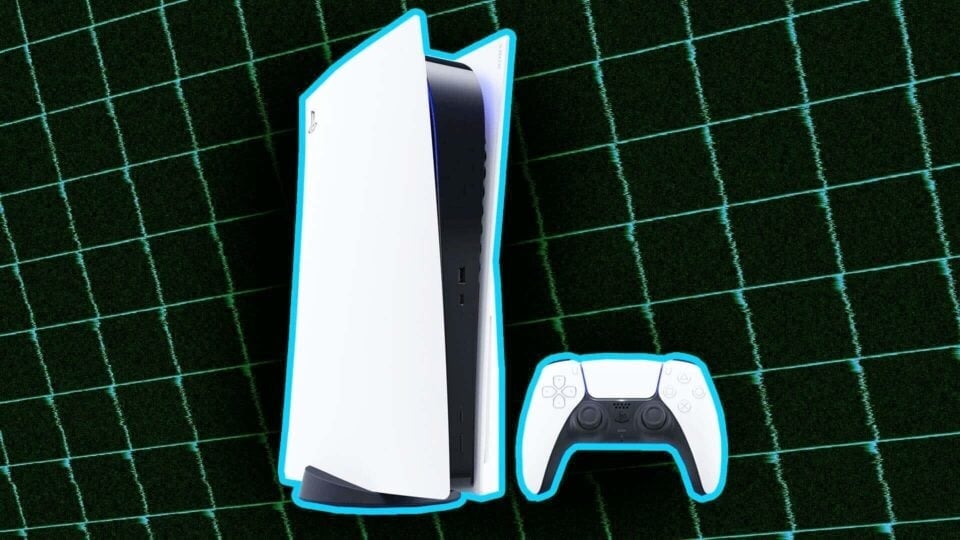
While PlayStation Plus users can enjoy voice chatting with one another via the PS5 default chat system, voice communication with players across other ecosystems has always been a challenge. Thus, with Discord growing to be the world’s most popular option for linking up in gaming, it makes sense that Sony would eventually bring it to the PS5 to facilitate cross-platform voice chats.
Linking your Discord account to a PS5 isn’t a terribly difficult process, either. If you’re looking to have access to all of your Discord voice channels on your console, here’s how to make it happen.
How to use Discord on your PS5
To use Discord on your PS5, you’ll first need to link your Discord and PSN accounts. To do this, log into your console, then head to Settings > Users and Accounts > Linked Services. Follow the on-screen instructions until you’re tasked with entering a code. At this point, you have two options.
Option 1: Head to discord.com/activate and enter the code seen on the right side of your TV screen.
Option 2: Use your phone to scan the QR code on the left side of your TV screen.
Either way, it will finish linking your Discord account to your PS5. With that out of the way, you’ll want to get started voice chatting with friends (or strangers in random servers, if that’s your thing).
Now that you’ve linked your Discord and PS5 together, you can access all of your Discord server voice chats by clicking the PlayStation button on your controller, selecting the Game Base icon, and then scrolling down to the Discord logo.
Once you’ve opened up the list of every server you’ve joined on Discord, click on whichever one you’d like to see the voice channels for, then select the specific voice channel you’d like to join. Alternatively, you can call your Discord friends by selecting “Direct Voice Chats” in the main server list.
Have fun chatting with your pals regardless of which platform they choose to play on!