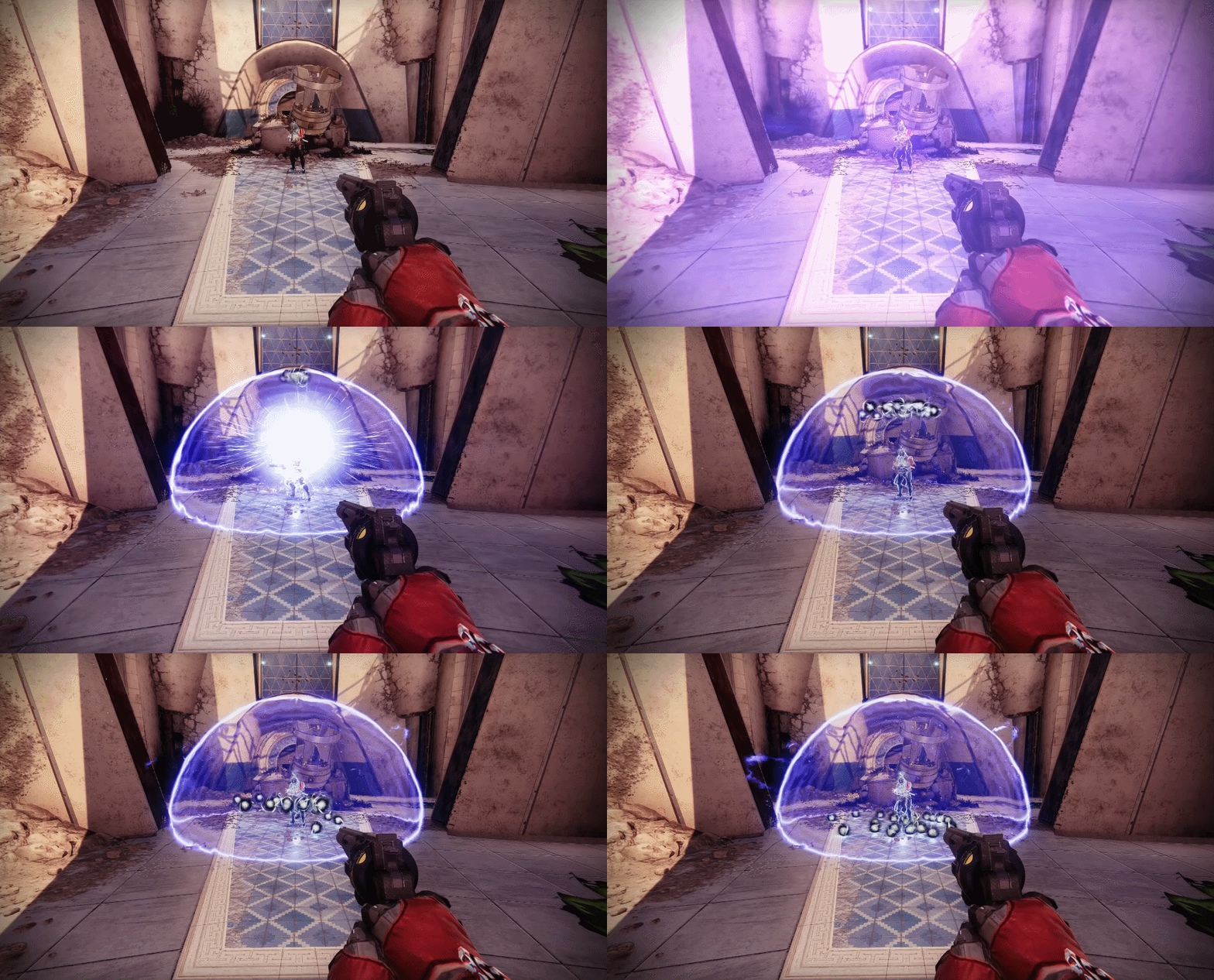
If you’ve got the 360 or PS3 versions of Skyrim, you’ve got a very fine game on your hands. If you’ve got the PC version, though, the game you’ve got is just the beginning.
In the years to come there will be mods, tweaks and cheats you can use to dramatically transform the game, Bethesda’s original vision relegated to mere building blocks for something larger, grander and more customised.
In this guide, I’m going to show you the best ways already available to make Skyrim both look and play better.
First, the look of the game. While the stock graphics are a nice improvement over previous Bethesda titles like Oblivion and Fallout 3, there’s still room for improvement. And people have already improved things. Dramatically.
The easiest and most impressive way to have the game looking better is to install the FXAA Post Process Injector, which improves the game’s visuals with “a slew of post processing effects, including bloom, sharpen, technicolor, sepia, tonemap, vignette and more”. Because it uses a custom installer, you’ve got options to play around with, so to get the desired effects spend some time playing around with it. Just be sure to read the instructions carefully before use, though, as it could break your game (like it did for Fahey). Didn’t break mine, though, and with the default colour changes dialled back it looks amazing
Next is the No More Blocky Faces mod, which fixes the annoying “bumps” you’ll find on some female character’s faces where features like their chins and noses look like contour maps. It may seem minor, but if you spend a lot of time up in Lydia’s face, you’ll want to use it.
Now that the bumps are fixed, install Xenius’ detailed faces and detailed bodies mods, which add a layer of fidelity to the inhabitants of Skyrim
Nature-lovers, meanwhile, will want to install Vurts’ Skyrim Flora Overhaul, which adds a ton of detail to the trees and other vegetation of the game. Again, sounds minor, but if you spend a lot of time trudging through the wilderness you’ll really notice the difference.
That’s it for the mods to make the game look better; now it’s time to get into the game’s .ini files and do some tinkering. Find (and backup, in case you screw it up) your skyrimprefs.ini file and make the following changes:
bTreesReceiveShadows=0 —> bTreesReceiveShadows=1
bDrawLandShadows=0 —> bDrawLandShadows=1
That’ll cause the landscape and trees to give off proper shadows, which makes a nice difference, especially on sunny days or at sunrise/sunset.
Now we’ll look at improving how the game plays. A good PC game is one that lets you mess around with stuff under the hood, and Skyrim is a good PC game, its console function (activated by pressing the ` key in-game) giving you access to some nice feature changes, as well as a bunch of cheats.
The best change you can make from the console is to adjust the FOV (or Field of View) angle, which governs how close the camera is to the game world. Many people find the default setting to be a little too cramped, so entering “fov 85” works well. Note 85 is just my personal preference, yours may be higher or lower!
The console is also where you input cheat commands. These can be a lot of fun, but be warned that using them will disable achievements in your game, so use them at your peril. You can find a complete list of cheats at the Skyrim wiki, but we’ll drop some of the better/bigger ones below:
TGM – Toggle God Mode (invincible, also removing encumbering effect, removing shout cooldown, and granting unlimited magicka and stamina)
TCL – Toggle Collision (no clipping mode; interacting possible, walk pointing up to fly into the air)
TM – Toggle Menus (Removes the HUD and other dialogue texts)
killall – Kills all hostiles in your immediate vicinity
psb – (Player Spell Book) Unlocks all spells in-game and unlocks all shouts. Note that using this command will unlock spells, even those used to test Skyrim.
player.setlevel X – Make X equal your desired character level.
coc qasmoke – This brings you to the testing hall with all items and crafting interfaces in the game. Be careful as opening enchanted armor and weapons cabinets may cause your game to crash (in some cases the game may simply stop responding, if this is the case, be patient and let the objects load; there are a lot of them- every type of regular weapon times at least 20).
coc – This will teleport you to any location you type in.
TFC – Toggle freefly cam (removes the body and set the camera free, you will not be able to interract)
TAI – Toggle Artificial Intelligence (freezes npc, they can’t walk, move, or anything.)
TCAI – Toggle Combat Artificial Intelligence (same as TAI; however only makes the NPC not being able to combat)
TDetect – Toggle AI Detection (You can steal all you want and no one will see you, doesn’t work with pickpocketing)
And that about covers it for a beginner’s guide! If you get all this stuff installed/working and want to dig a little deeper, the best place to start is Skyrim Nexus, the hub of the game’s modding community. Those confident with more thorough tinkering with their .ini files, meanwhile, should look up this Rock, Paper, Shotgun post for further tweaks.
(Top image by Dead End Thrills)
You can contact Luke Plunkett, the author of this post, at [email protected]. You can also find him on Twitter, Facebook, and lurking around our #tips page.