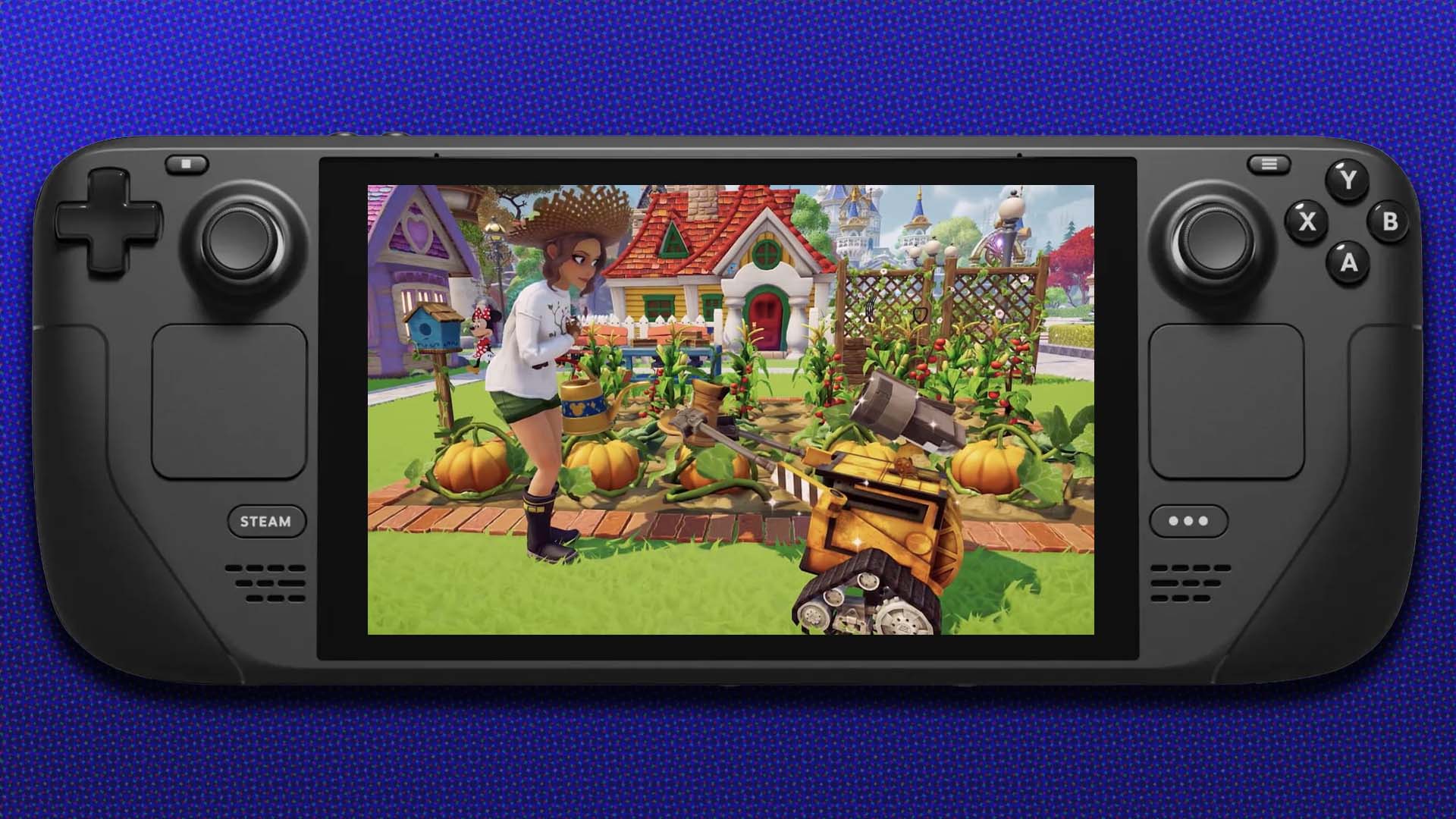
The recently released multiplatform life-sim, Dreamlight Valley, is a bit Animal Crossing, a bit Stardew Valley, and a whole lot of Disney. It’s also the kind of game you might want to play while watching a TV show, multitasking with a handheld console. But while it did come out on Switch, that version isn’t great. Luckily, Dreamlight Valley runs great on Steam Deck with a few tweaks. Just be prepared to charge your Steam Deck before playing.
Don’t Worry About What Steam Says, It Works
Steam currently lists Dreamlight Valley’s compatibility with Steam Deck as “Unknown,” which isn’t surprising. What this means is that the game has yet to be reviewed by Valve for compatibility. Now, a question mark and the lack of a verified check mark might scare you away, but don’t worry. After playing Dreamlight Valley for a few hours on Valve’s lovely portable PC, I’ve found the experience to be on par with most other playable and verified titles.
However, you might need to change your library filters to actually find and install it. Just change the filter using the X button and switch it to show all games, even unknown and unsupported. You should then be able to see Dreamlight Valley, assuming you own it.
With A Few Tweaks, This Is A Great Way To Play
Dreamlight Valley on Steam Deck is an okay experience right out of the box, but with a few tweaks, you can greatly improve how it plays. Before any changes, the game runs at a sort-of-stable 60fps. It’s playable, sure, but can be improved.
First, change the resolution to 1280×720 (Dreamlight doesn’t support the Deck’s native 1280×800). Leave it at 60Hz and reduce all the graphical settings to medium. Don’t mess with the Display Mode setting, as when I did this it locked up the game on the Steam Deck every time. But, with these settings, you’ll notice a nice improvement in framerate stability. You can drop the texture quality from default to low, too, as the Deck’s small screen does a good job of hiding the drop in quality. But in my time with the game, it wasn’t a necessary tweak.
Read More: 27 Things I Wish I Knew Before Playing Disney Dreamlight Valley
Once you’ve got Dreamlight Valley running nice on the Steam Deck, you can also take advantage of the touchscreen, letting you easily move items around in your inventory and chests. If you’re like me and love to frequently re-organize these spaces, playing on Steam Deck is fantastic compared to using a console controller. I find the game’s inventory management time consuming and clunky on a gamepad, especially compared to a mouse or the Deck’s touchscreen.
If you’re logging on just to check the store, do some mining, and plant some more crops, the Steam Deck is perfect. Lately I’ve spent an hour each evening playing a bit of Dreamlight Valley while watching Taskmaster or random YouTube videos.
Charge Your Steam Deck Thoroughly First
In my testing of battery-draining games on the Steam Deck, Dreamlight Valley is not the worst offender, not even close. But it does drain the Deck quicker than I expected. I guess all that Disney magic doesn’t come for free, huh?
Using the settings I shared earlier and without tweaking the system’s battery settings, it seems a fully charged Steam Deck can play for about two and a half to three hours depending on what you do in-game. Of course, changes to settings can impact battery life, but don’t expect much more than three hours.
In short, with a few minor tweaks, Dreamlight Valley is great on the Deck. In fact, it might just be the best way to play this new slice-of-life game, especially if you’re someone who likes to multitask or prefers lounging outside on the patio when gaming. Just make sure you charge your Deck up first.