Looking for the best settings to maximize performance and frame rate in Marvel Rivals? The new hero shooter makes crossplay refreshingly simple, but optimizing your settings is a bit more of a complex task. Getting the best performance that you can out of the game on PC will take a little more legwork than getting into a lobby with your friends.
Sure, there’s an in-game option to optimize your graphics for PC players. But, this sort of just throws you into one of the presets: low, medium, high, or ultra. That can be a good place to start, but if you’re still having performance issues, it’s worth diving into the menu to see what you can change.
To find these settings, click on the gear, then settings. In the display menu, I settled on the following settings.
Display Mode: Fullscreen. Borderless Windowed works better with a multi-monitor setup, but Fullscreen is better for performance.
Anti-Aliasing and Super Resolution Type: Nvidia DLSS (for those with Nvidia cards)
Mode: Quality
Sharpening: 70-80 (This can be lowered further to try and improve performance, but it’s a small gain for a noticeable visual difference).
Frame Generation Mode: Off
Low Latency Mode: NVIDIA Reflex Low Latency
V-Sync: Off
Global Illumination: SSGI – Low Quality
Reflection Quality: Screen Space Reflections
Model Detail: Medium
Post-Processing: Low
Shadow Detail: Medium
Texture Detail: Medium
Effects Detail: Low
Foliage Quality: Medium
This is a good base to start from if you’re running into framerate issues. If everything runs smoothly, you can try upping the non-bolded settings above for options like Texture Detail to squeeze some prettier pixels out of your GPU. But if your frame rate still isn’t where you want it to be, there are some other worthwhile options. You can try lowering settings like foliage quality, shadow detail, and reflection quality. You may also want to try lowering your game’s resolution.
You can also change your reticle in Marvel Rivals
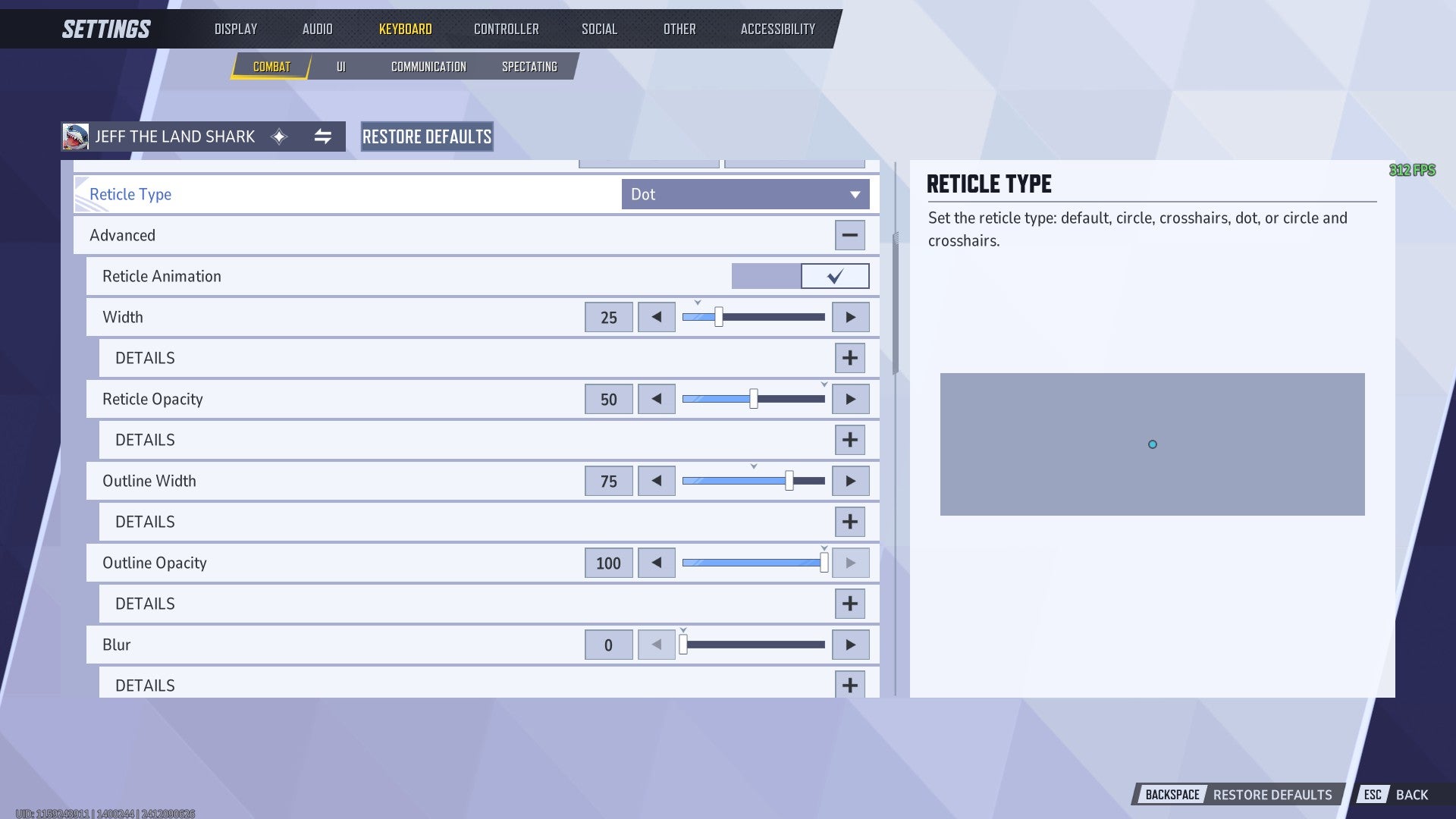
Yes, you can change your reticle already in Marvel Rivals! And, just like Overwatch, you can change these on a character-by-character basis. To find the menu, go to your preferred control method in the top menu (keyboard or controller), then go to combat. Here, in the HUD subsection, you’ll find the in-depth reticle editor. You choose from different types, like a simple dot or a set of crosshairs. You can create a custom color, and change the width and opacity.
As far as the best reticle, there is no 100% definitive answer. Get in this menu and experiment to see what works best for you! With this knowledge of the settings in your pocket, you’ll be better prepared than ever to help save the timeline!
Marvel Rivals is available for free on PS5, Xbox Series X, and Windows PCs.