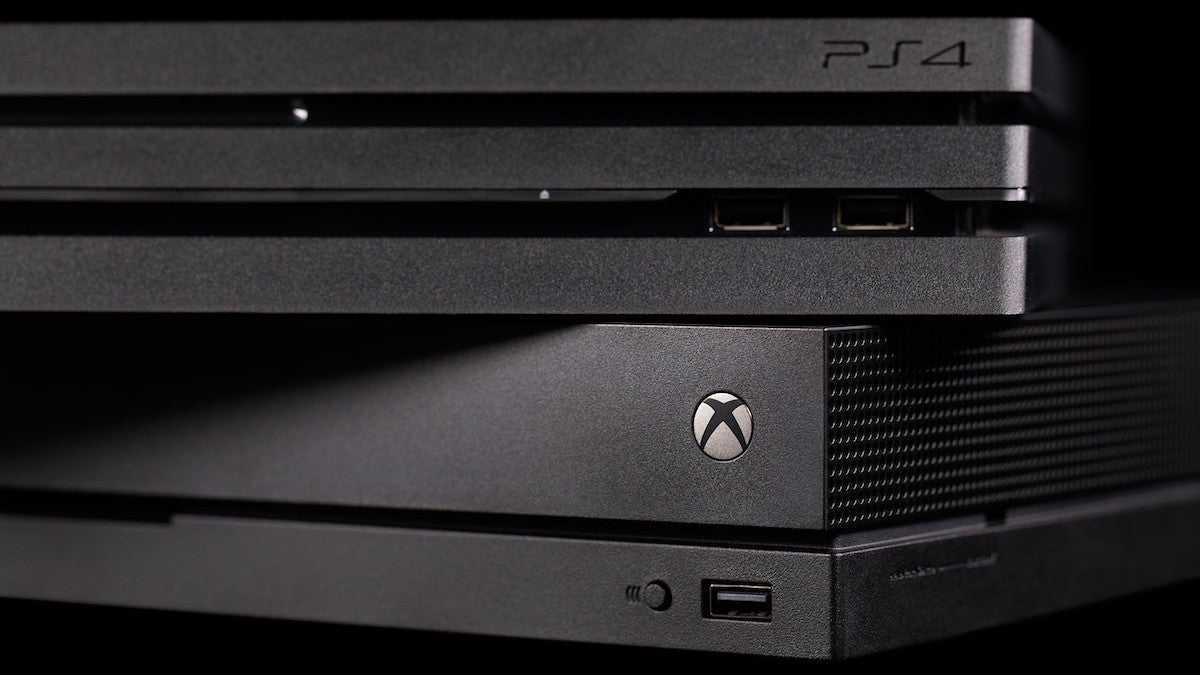
A little more than a month from now, next-gen consoles will be out in the wild. At this point, you might be regarding your PlayStation 4 or Xbox One as a slowly degrading plastic box that’s doomed to waste space and collect dust. You might have even considered [gasp] getting rid of them.
Of course, these machines are by no means obsolete. Microsoft has repeatedly promised to continue support for the Xbox One, and even some games that seemed like PlayStation 5 exclusives—Horizon Forbidden West and Spider-Man: Miles Morales, for instance—have been confirmed as PS4 releases. But, if you’re planning on parting ways with your current-gen consoles in the coming weeks or months, there’s a smart way to go about it. Here are the preventative steps you should take.
Copy your games to an external device.
Current-gen games will be largely backward compatible on both the PS5 and the Xbox Series X. But the fact of the matter is that we don’t know how smooth the process will be at a launch, how accessible your digital library will be, and how long it might take for Sony and Microsoft to iron out any kinks that might pop up. If you already have a reliable external drive on hand, it can’t hurt to copy over your favorite games ahead of time.
Xbox One games will work on the Xbox Series X and S, so long as they’re on a compatible external drive. (External storage drives that work for the Xbox One will also work for the next-gen Xboxes. Just remember that while you can store your next-gen games on the legacy drive, you won’t be able to play them from there. You also won’t be able to make the most of the console’s slick solid-state drive to optimize current-gen ones.) So if you wanted to, say, download all 100-ish games on Game Pass to one Arbiter-sized HDD, you’re well within bounds to do so.
Sony hasn’t revealed how, or if, externally stored PS4 games will work on the PS5. (We’ve reached out to Sony for clarification and have yet to hear back.) But, again, it can’t hurt to be prepared.
In any case, here’s how to copy games to an external drive on both legacy consoles:
Xbox One: On Xbox One, you need at least 256GB of free space on your external drive. Once you’re sure of that, it’s a matter of opening your settings, heading to the System submenu, and selecting the “Storage” option. You can choose the games you want to transfer piecemeal, or select them all, and copy or move them to any external drive plugged into your console. Copying will duplicate the files onto your external drive, while moving will delete them off of your console.
PlayStation 4: With the PS4, you won’t need 256GB of free space, but you will need 250GB. (Three cheers for arbitrary distinctions!) You might need to format your external drive for PS4, too, but you can do that directly on the console. Once everything’s set, go to your console’s Storage menu and click on “system storage.” Hit the Options button and select “move to extended storage.” Then select the games you want to move over and confirm.
Back up those saves.
Creating backup save files on the Xbox One is seamless, so long as you have an internet connection. All you have to do is connect to Xbox Live. It’ll sync your data to your account. What’s more, thanks to the Smart Delivery feature—in short, games you get this gen will work next gen too—save data for cross-gen and backward-compatible games will also follow your account. Conveniently, that’s all done at a platform level
Sony, meanwhile, is leaving it up to developers. Only a handful of games have confirmed cross-generation save transfers, so it’s certainly an instance of “better to have it and not need it than to need it and not have it.”
If you’re a member of PS Plus, Sony’s monthly premium membership, you can store your saves in the cloud. The easiest way to do so is to set your console up to automatically upload your save files whenever you log out or switch over to rest mode. First, you need to make sure your PS4 constantly stays connected to the internet, a setting you can toggle in the Power Save Settings menu, under the “set features available in rest mode” options. Once that’s squared away, go to “application saved data management” and check off the first box. You can store up to 1,000 individual data files in the cloud, which should be more than enough for your purposes (unless you’re the dude who nabs 300 Platinums a year).
You can also backup save files individually to an external USB storage device. Under “application saved data management,” click on “saved data in system storage.” From there, you can copy to a USB storage device, either piecemeal or in bulk, by hitting the Options button and selecting the only option that pops up. Save data tends to be relatively small—we’re talking megabytes, not gigabytes—so you could even put this stuff on a flash drive.
Restore factory settings.
Between save data, account info, friends lists, achievements, and any stored financial information, it’s best practice to simply wipe the slate clean. Just a heads up: Once you do so, there’s no going back. If you’re 100 percent sure you’re ready to part ways, here’s how to do it for your various consoles.
Xbox One: First, be sure to sync up with Xbox Live; that will ensure your save data and other bits of account info are backed up digitally. Then tap the Xbox button and open up your settings. Scroll down to “System,” open the Console Info submenu, and click “Reset console.” Then hit “reset your console?” and select the “reset and remove everything” option.
PlayStation 4: Open the settings and go to the Initialization submenu. You should see an option to “restore default settings.” Follow the prompts.
Nintendo Switch: Open the settings menu, close the settings menu, put your Switch down, and ask yourself why in the world you’d want to get rid of the only console that will play Super Mario Odyssey
Don’t immediately sell it to GameStop.
This isn’t to say that you shouldn’t part with your console at GameStop. But be sure to do some research first. GameStop’s website has a handy resell calculator that reflects to-the-date dollar values. Just punch in what you’re hoping to sell and you’ll see the exact amount GameStop’s system will offer you. (As of this writing, the original 500GB Xbox One is currently listed at $75 for both cash and in-store credit.) Before lugging your stuff to the store, see how much you’ll get.
But GameStop isn’t your only option. Some other services, like Decluttr, will buy your secondhand tech at a competitive price. Currently, it’s offering $140 for an Xbox One X and the same for a 1TB PS4 Pro. Or, if you’re willing to put in the work, Craigslist might give you more than you’d get from a corporate-sanctioned calculator. In the New York metropolitan area, Xbox One consoles are currently listed anywhere in the $100 to $200 range. PS4s, a bit higher. The prices are around the same on eBay, but, after a lot of scrolling, I saw some listed for as low as $50. (I, for one, do not trust the condition of those listed at $50. Others might see it differently.) While you’re at it, call up your local brick-and-mortar electronics store and see what they’ll offer you.
You could also donate your old console to charity, if you’re in a position to do so. Gamers Outreach, a charity based in Ann Arbor, Michigan, donates video games to hospitalized children. In Canada, there’s the similarly missioned Get Well Gamers. (For our readers across the pond, there’s a UK-based parent organization.) Your local library is a solid option, too. Consider reaching out to these or similar organizations to see if they have a current need for secondhand video game consoles.
Do some housekeeping.
If you’re dead set on bidding adieu to your Xbox One or PS4, pay it forward. Give your machine a good dusting. Make sure everything works properly. Wrap your cables—neatly. (Get some twist ties if you need to.) And make sure to properly sanitize everything. We’re still in the middle of a global pandemic, after all.
More Service and Advice
https://lastchance.cc/how-to-split-your-video-games-after-a-breakup-1843959151%3C/a%3E%3C/p%3E