Switch to Nintendo Button Layout if you prefer Switch-style select and cancel buttons
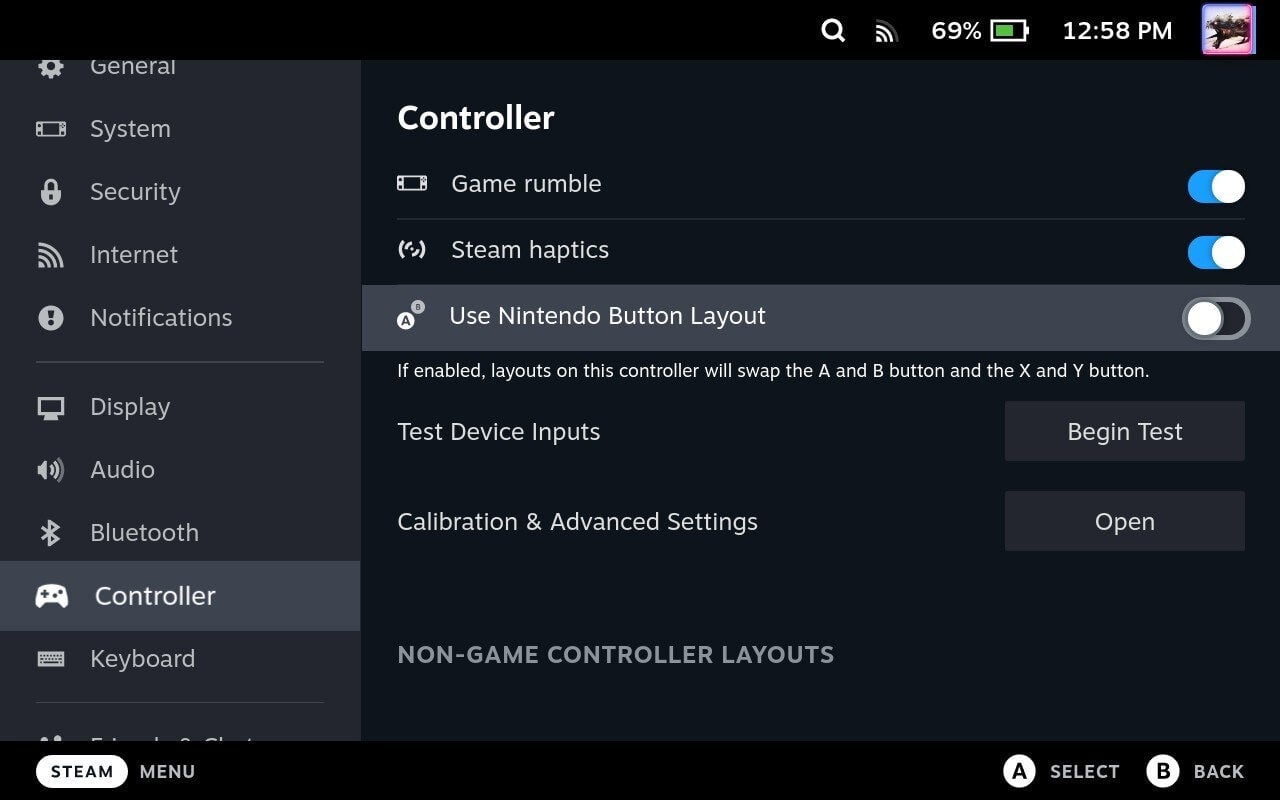
If you prefer your “Accept” button to be your right-most face button and your “Cancel” button to be the lowest face button, like it is on Switch (and many old PSX games), simply flip on “Use Nintendo Button Layout” under the Controller selection in the Settings.
Note: Though this change will be reflected in some games, button prompts on screen won’t always match the physical hardware. For example, if you select “Use Nintendo Button Layout” and fire up The Witcher 3, the physical A-button will make you jump, though the game will use the B-button prompt on screen to indicate “Jump” (B is the jump button in that game on a standard Xbox controller).
Nintendo Button Layout just sees the Steam Deck swap these buttons internally, which can be a little confusing game-to-game.