Use R1 + Steam to take a screenshot (plus other useful shortcuts)
Like many gaming consoles, the Steam Deck has a handy way to take screenshots, but it’s not obvious. Simply hit R1 + Steam and you’ll take a screenshot. To find those screenshots, hit the Steam button and navigate to Media.
Note: While R1 + Steam is a very quick way to take a screenshot, there are two things to consider. If, for example, you’re playing a game where R1 is a melee attack, taking a screenshot will trigger the melee attack—which may or may not be seen in the screenshot. Also, if you take a screenshot while the notification for taking a previous screenshot is still active, your image will have the notification. If you want to hide screenshot notifications, switch on “Disable non-critical notifications” or “Hide non-critical notifications when in game” in the Notifications settings, which you can access by hitting the Steam button.
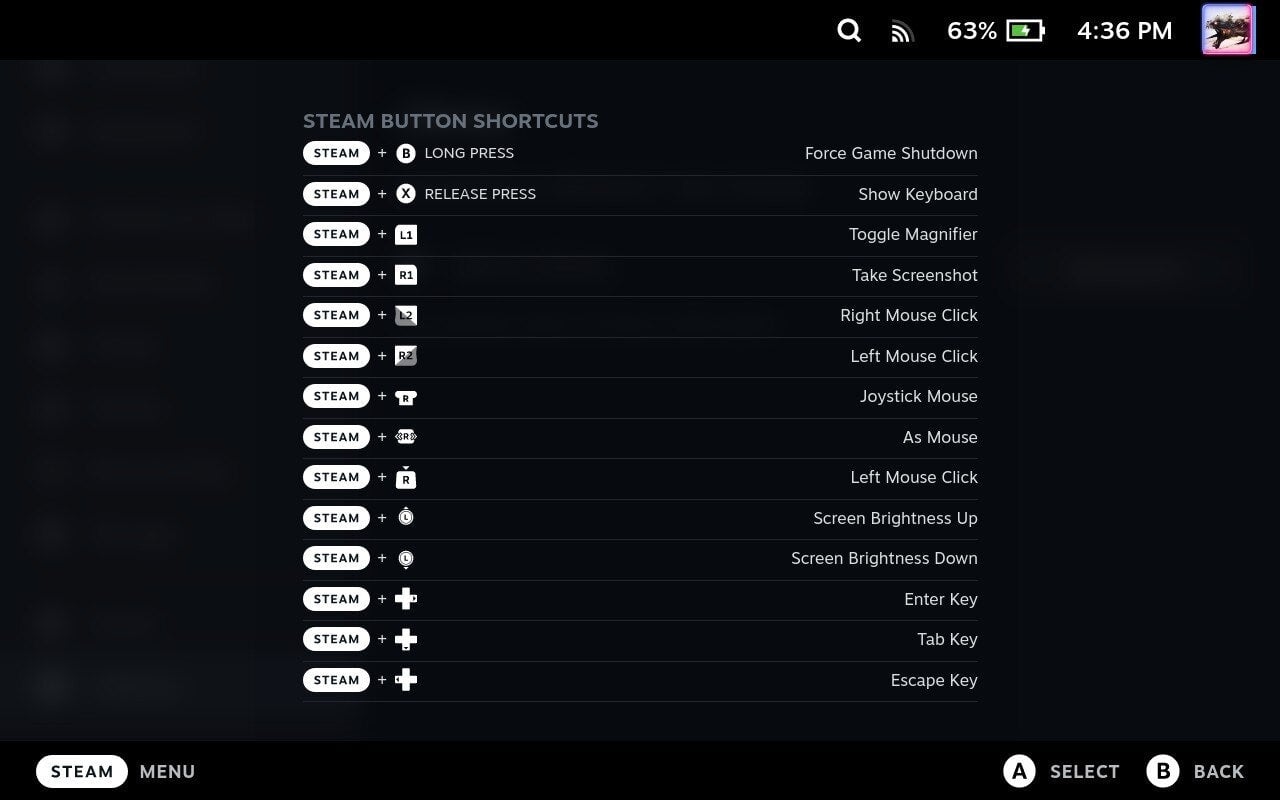
Sadly, you can’t customize these shortcuts right now. Holding the Steam button will show you a screen with all important screenshots. Here are a couple to commit to memory:
Device Functionality
Screen brightness: Steam + Up or Down on Left Analog Stick
Force Game Shutdown: Steam + B (long press)
Show Keyboard (on Desktop Mode): Steam + X (launches after release)
Keyboard Keys
Enter Key: Steam + Right D-Pad
Tab Key: Steam + Down D-Pad
Escape Key: Steam + Left D-Pad