Format Factory is a general-purpose media converter built for situations where a file is not in the format you need. It is free and handles video, audio, images, documents, and older file types that many online converters will not touch. Common uses include converting MP4 to AVI, PNG to JPG, or MP3 to OGG, as well as compressing large video files for storage or sharing.
The interface is functional rather than polished and has a somewhat dated look. What it lacks in visual appeal, it makes up for in the breadth of what it can convert without pushing users through complicated settings. The process is straightforward: choose a target format, add your files, pick an output location, and run the conversion. Because the app works entirely offline, files stay on your machine, and nothing is sent to an external server.
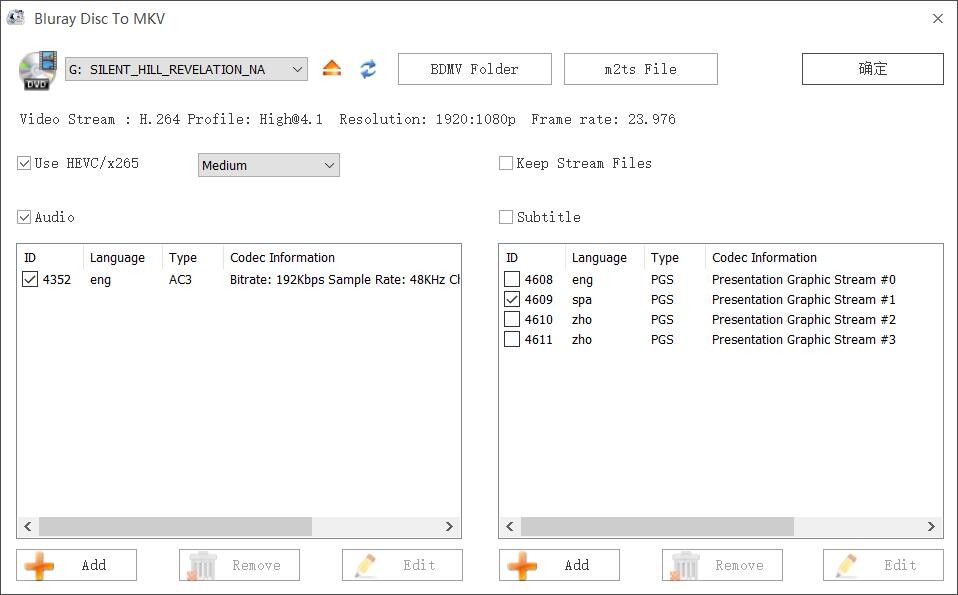
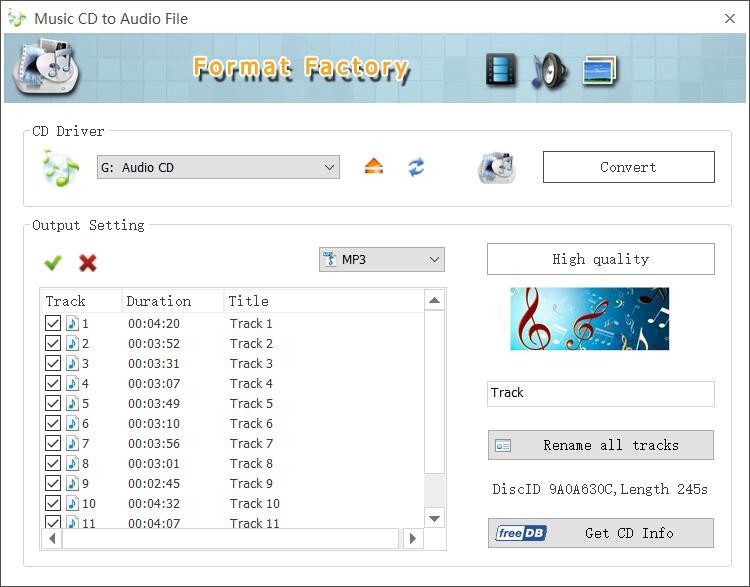
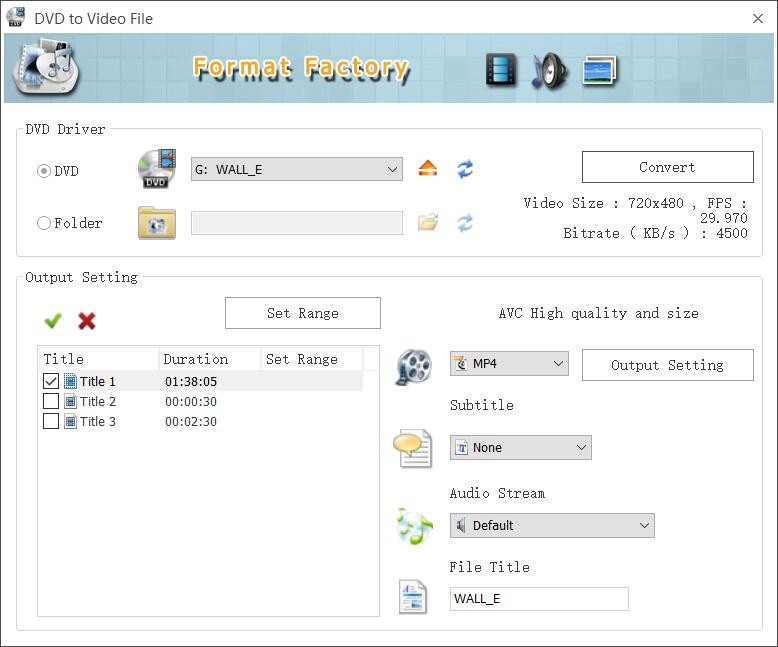
Whether you are a student requiring a specific format for a project, a creator handling batch conversions, or someone who just needs a quick trim, merge, or resize, Format Factory covers it without charging anything. Simple video editing, image cropping, basic media repair, and DVD and CD ripping are all bundled in, giving it the feel of a converter with a small utility toolkit attached.
What Are the Key Features of Format Factory?
Format Factory works across a wide range of file types. It converts videos, audio, images, documents, and archived files. Converting MP4 to MKV, pulling audio from a video, shrinking large files, or batch-converting a folder of images to JPG all take just a few clicks. It handles formats like WebP, HEIC, FLV, and MOV that are frequently unsupported by simpler converters.
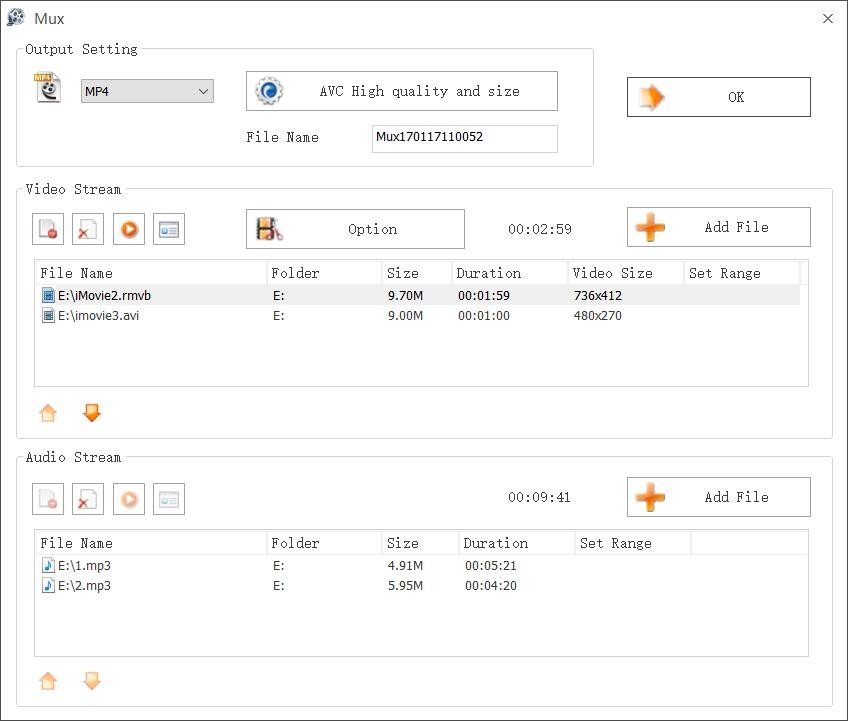
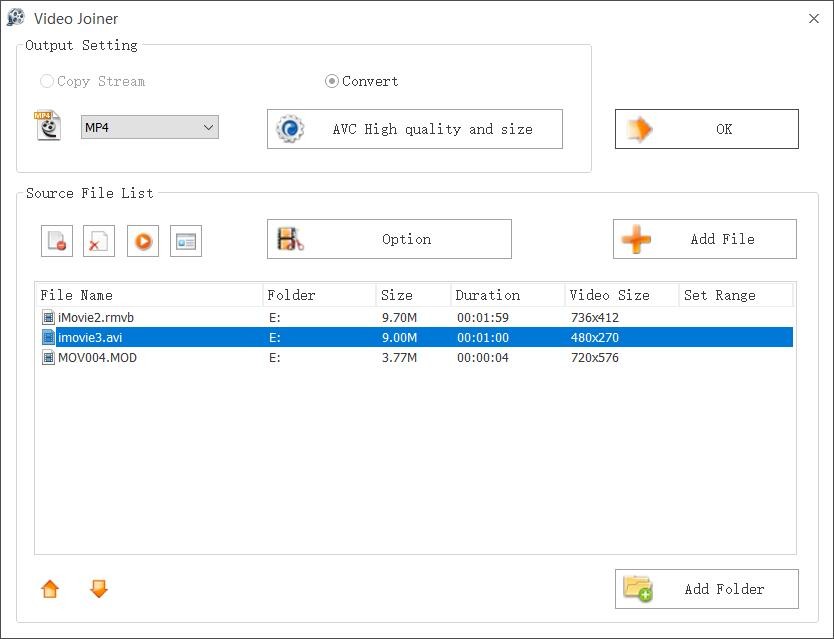
Batch processing is one of the more practical time-savers. Entire folders can be dropped in and processed together, which helps anyone working through a large library of files. Built-in editing tools allow you to trim video clips, merge multiple clips, add watermarks, crop and rotate images, and reduce file sizes without switching to a separate program.
For video conversion specifically, you can adjust resolution, bitrate, aspect ratio, and metadata. Device presets for iPhones, Android phones, PSPs, and older hardware make it easier to produce files that will play correctly on specific devices. Additional capabilities include DVD and CD ripping, ISO creation, screen recording, and basic media repair.
The app runs offline, which means no files are uploaded, and privacy is not a concern. GPU acceleration speeds up demanding conversions. A built-in media player lets you preview files before and after processing. It is not a professional editing suite, but it handles most everyday media tasks without any complexity.
Is Format Factory Free to Use?
Yes. Format Factory is fully free. All conversion tools, batch processing, device presets, and light editing features are available without any subscription or paid upgrade. The software displays ads within the interface, but these do not restrict any functionality. There are no caps on the number of conversions or file size limits, which is a significant advantage over tools that impose restrictions on their free tiers.
Which Platforms Support Format Factory?
Format Factory is a Windows-only application. It runs on Windows 7 through Windows 11, with both 32-bit and 64-bit support. No official macOS or Linux versions have been released, so users on those platforms need to look elsewhere or run it inside a Windows virtual machine. There is no mobile version for Android or iOS.
Being a native Windows application, it integrates into the file system and behaves like any other desktop tool. It requires no internet connection, cloud account, or browser to operate. Everything happens locally, which makes it well-suited to users who prefer offline software, especially when working with sensitive files or media too large to upload comfortably.
What Are the Best Alternatives to Format Factory?
HandBrake is an open-source video converter and compressor with a sharper focus than Format Factory. While Format Factory handles audio, images, and documents as well, HandBrake concentrates specifically on video. It manages large files well, optimizes output for streaming, and gives users detailed control over encoding settings, including frame rate, codec selection, filters, and subtitle handling. It runs on Windows, macOS, and Linux, making it more cross-platform than Format Factory. For users who want precise, high-quality video output and are willing to spend more time on settings, HandBrake is the stronger tool. You can download it quickly whenever you need reliable, detailed video conversion.
Freemake Video Converter is another Windows-based multimedia tool covering video, audio, and images. Its interface and general feature set sit in similar territory to Format Factory, with DVD ripping, slideshow creation, and online video importing also included. It is straightforward enough for beginners and handles common conversion tasks without much setup. The main limitation is that the free version adds watermarks to exported files, and some features require an upgrade to unlock. For users comfortable with that trade-off who want a clean, familiar-looking conversion tool, Freemake is a practical option. Its basic version is easy to download and works well for quick everyday conversions.
CloudConvert is a browser-based solution that requires no installation at all. It supports over 200 formats spanning documents, images, audio, video, ebooks, and archives. Because it runs in a browser, it works across Windows, macOS, Linux, ChromeOS, and mobile devices. It integrates with Google Drive, Dropbox, and other cloud storage services for a convenient workflow. The trade-offs are that heavy or frequent use requires purchasing conversion credits, and uploading personal files to an external service will not appeal to users who prefer keeping their media offline. For occasional or one-off conversions, particularly unusual formats that desktop tools might not handle, it is a flexible and accessible option. Users can open the site and download converted files straight away without installing anything.